
In 2025, Sectigo migrated to new single-purpose Public Root certificates for TLS/SSL and S/MIME certificates. The new Public Root CAs ensure that Sectigo certificates remain highly secure, widely trusted, and fully compliant with evolving industry standards.
These new Public Roots are already incorporated into the root stores of major browsers, including Google, Microsoft, Apple, and Mozilla.
Attention: Starting January 1, 2026, Sectigo will no longer allow SSL certificates to be re-issued under older root and intermediate chains. Please plan to use the new Public Server Authentication root and intermediate certificates moving forward.
Sectigo SSL Certificate Files
Your Sectigo SSL certificate folder includes all of the necessary intermediate and root certificates, including a cross-signed certificate for maximum compatibility.
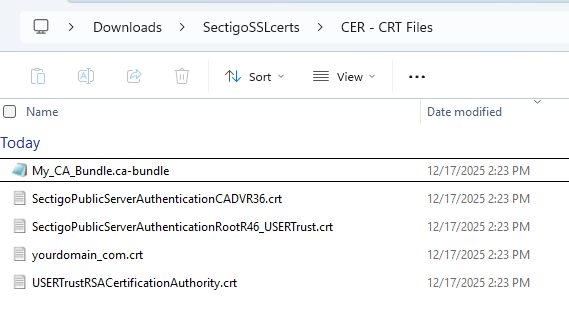
What's In Your Download
- My_CA_Bundle.ca-bundle: this file contains all of the intermediate and root certificates. You may need to rename the file extension to install it on your server.
- SectigoPublicServerAuthenticationCA (DV, OV, or EV) R36 or E36: the intermediate or subordinate CA certificate that chains up with Sectigo's public root.
- SectigoPublicServerAuthenticationRootR46 (or E46)_USERTrust: the cross-signed root certificate that chains up with the legacy USERTrust root certificate.
- yourdomain_com.crt (or your order number): the "leaf" SSL certificate for your domain.
- USERTrustRSACertificationAuthority: the legacy USERTrust root certificate for maximum compatibility with older devices.
It is recommended to install EVERY provided intermediate and root certificate (including cross-signed) on your server when you install your SSL certificate.
Sectigo Intermediate and Root Downloads
Download the individual intermediate and root files below. Keep in mind that most SSL certificates use the RSA algorithm by default, but make sure to download each file that best fits your use case.
For broadest compatibility, download and install both the cross-signed root and the legacy root files - you may need to combine them into a single "CA bundle" for your server. Cross-signed and Legacy Roots for All SSL Types
Domain Validation (DV) SSL Certificates Issued After June 2, 2025
| RSA Intermediate for DV | ECC Intermediate for DV |
| Sectigo Public Server Authentication CA DV R36 | Sectigo Public Server Authentication CA DV E36 |
Organization Validation (OV) SSL Certificates Issued After May 15, 2025
| RSA Intermediate | ECC Intermediate for OV |
| Sectigo Public Server Authentication CA OV R36 | Sectigo Public Server Authentication CA OV E36 |
Extended Validation (EV) SSL Certificates Issued After April 15, 2025
| RSA Intermediate for EV | ECC Intermediate for EV |
| Sectigo Public Server Authentication CA EV R36 | Sectigo Public Server Authentication CA EV E36 |
If your SSL certificate was issued prior to the listed dates, please refer to the full list of Sectigo Intermediate and Root Certificates to obtain the correct files.
How to Avoid Disruptions
Intermediate and root migrations generally do not cause major issues, as the new certificates are already trusted by the most common browsers and devices.
- To eliminate the possibility of disruptions, there are a few recommended practices.
- When installing a new SSL certificate, make sure to include all provided intermediate and root certificates (sometimes combined into a single “CA bundle” file).
- Do not pin or hard-code certificates on your server. If you must pin certificates, you should update to the latest the root and intermediate files.
- Update your certificate profiles and trust stores to obtain the latest public roots.
Microsoft Server Legacy Compatibility
In some cases, end-users with older devices may not be able to trust the newest Sectigo root and intermediate certificates. This issue is often resolved by installing the provided “cross-signed” root, which chains your domain SSL back to an older root with long-established trust.
Microsoft servers may experience a unique issue where important cross-signed certificates are ignored in favor of the shortest possible chain, which older devices do not recognize. Microsoft has confirmed this functionality is intentional.
The recommended solution involves installing the provided cross-signed root certificate bundle, and disabling the self-signed version of the new root which may be installed on your server automatically.
Disable or Delete Untrusted Root from Microsoft Trust Store
- Log on to the web server as a system administrator.
- Add the Certificate snap-in to Microsoft Management Console by following these steps:
- Click Start > Run, type mmc, and then press Enter.
- On the File menu, click Add/Remove Snap-in.
- Select Certificates, click Add, select Computer account, and then click Next.
- Select Local computer (the computer this console is running on), and then click Finish.
- Click OK.
- Expand Certificates (Local Computer) in the management console.
- Locate the following certificate in the Trusted Root store:
- Issued to: Sectigo Public Server Authentication Root R46 (or E46)
- Issued by: Sectigo Public Server Authentication Root R46 (or E46)
- Serial number: 758dfd8bae7c0700faa925a7e1c7ad14
- Important: you should only delete or disable this certificate if the Issued to and Issued by fields are the same. The necessary cross-signed root will have the same name but a different issuer (USERTrust RSA Certification Authority).

- Delete or disable the certificate by using one of the following methods:
- To delete a certificate, right-click the certificate, and then click Delete.
- To disable a certificate, right-click the certificate, click Properties, select Disable all purposes for this certificate, and then click OK.
- Restart the server if the issue is still occurring.
Read more about this issue: