
This article walks through several common issues that can come up during the domain validation (DV) process for SSL certificates.
There are a few options you can adjust during the certificate enrollment process that will help you complete domain control verification (DCV) smoothly. After that, there are some tips for troubleshooting pending DCV using your preferred validation method.
Certificate Enrollment
As you generate your certificate request, watch out for a few options that can impact your domain validation experience later on.
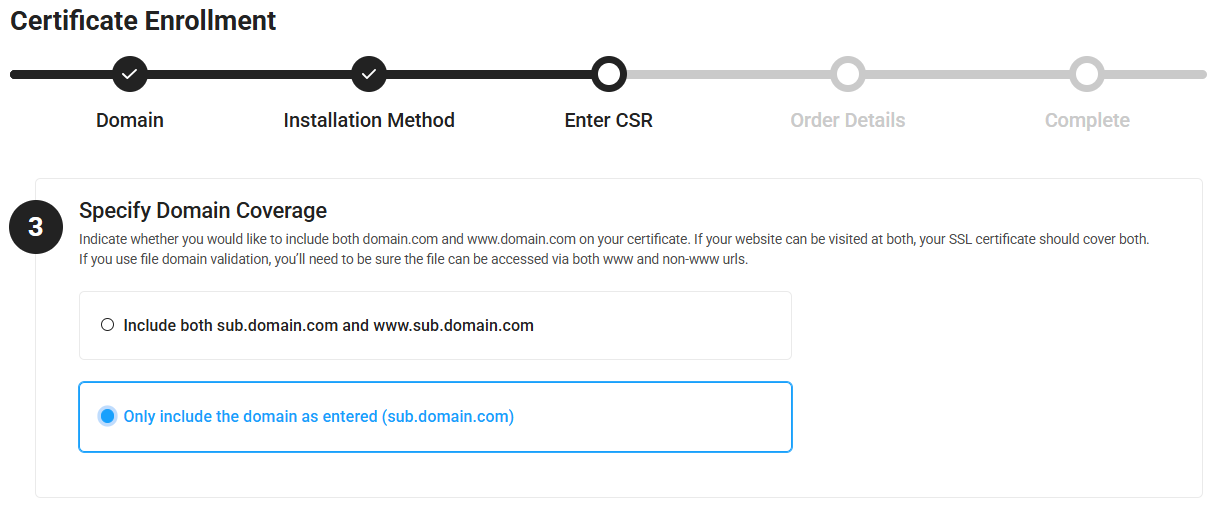
Specify Domain Coverage - include both domain and www.domain (or not)
In Step 3, after uploading your CSR, you can choose to include both www.domain.com and domain.com on your certificate (as long as it's for a single-domain, and not a wildcard certificate).
(Note: multi-domain SSL still requires that you manually add each individual domain or sub-domain including www separately)
The "include www" option is turned on by default, because most users do want that version of the domain name added to their base domain.
You probably don't want to "include www" if the certificate is only for a sub-domain, like sub.domain.com.
If you forget to change the setting, your certificate request will include www.sub.domain.com which may need to be validated separately. And if www.sub.domain.com does not exist, and can't be validated, the certificate can't be issued with it.
Recommended setting:
- If your CSR is for a base domain (like domain.com) check Include both domain.com and www.domain.com
- Keep it checked if your CSR domain is www.domain.com, and you'll get the base domain.com added instead
- If your CSR is for a sub-domain (like sub.domain.com) check Only include the domain as entered
I already completed enrollment...
If you have already completed enrollment, our support team may be able to remove any unwanted www sub-domains from the order.
Domain Approval Email Address Selection
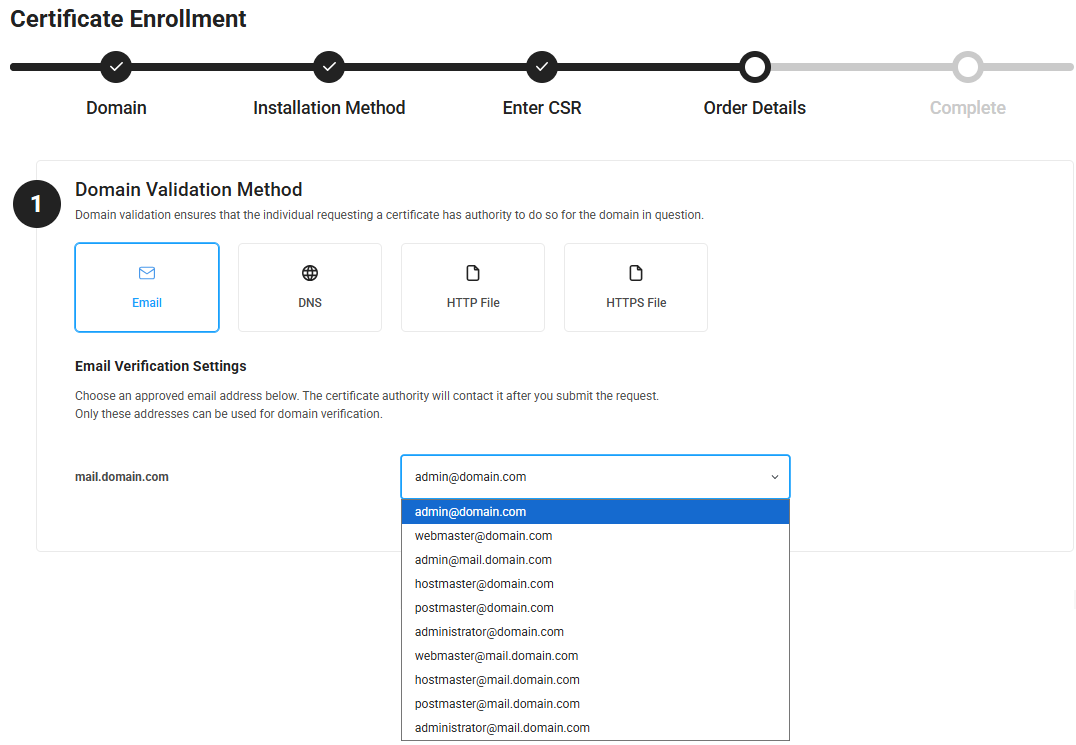
If you want to complete domain validation with the email method, you get to choose one pre-approved "alias" email address to receive an approval email from the CA.
You must be able to receive email on one of the pre-approved addresses on your SSL domain - CA's are not permitted to send email to any other address (including the WHOIS contact).
The certificate enrollment form lists every possible alias email address, including the base domain and the exact domain entered in the CSR. Just choose the email that works best for you.
If you don't own any of the email addresses on the list, you may not be able to use the email method for domain validation. If you can't create an alias, or at least setup mail forwarding from one of the approved aliases, consider the DNS or HTTP/HTTPS File methods instead.
I already completed enrollment...
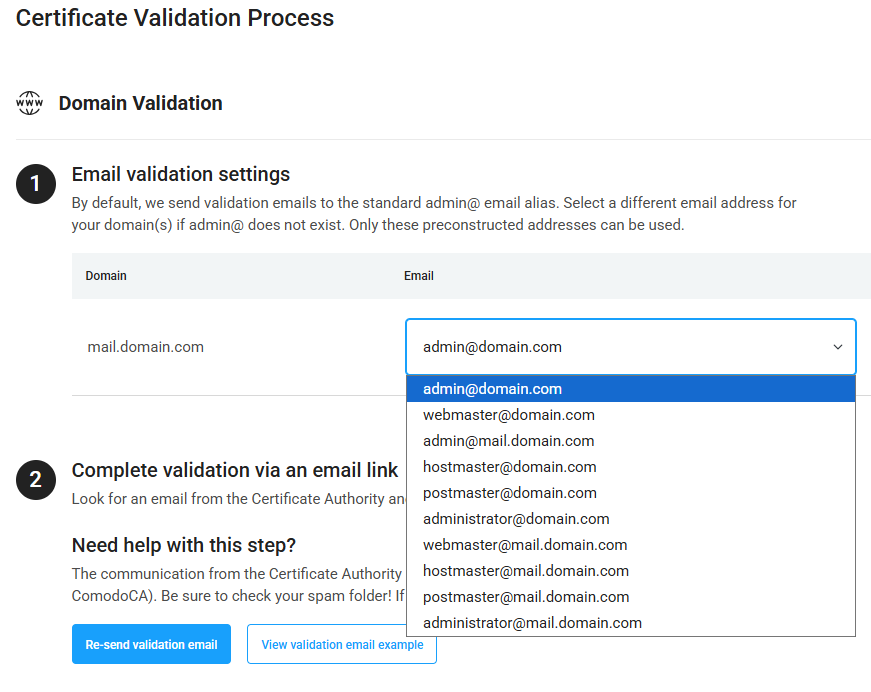
You can change the email address and re-send the domain validation email on your CertPanel order dashboard.
If you want to use an email that is not on the list, the address is probably not approved for domain validation.
Check with our support team for more info on the emails that can be used for domain validation on your SSL order.
Post-Enrollment DCV Troubleshooting
Your CertPanel dashboard will display all of the instructions for domain control verification (DCV) as soon as you submit your order. If you want to change from one validation method to another, you can do that on the order dashboard.
If you believe you've followed the DCV instructions exactly and your certificate is not getting issued, there are several common issues that could be happening.
Domain Approval Email Issues
DCV email goes to junk or quarantine
Sectigo uses the address noreply_support@trust-provider.com to send domain approval emails.
Noreply email addresses are frequently flagged as spam, and could be blocked or quarantined by your email server.
You'll need to check the junk folder and possibly adjust your server quarantine settings to make sure the approval email isn't getting blocked. You can also try whitelisting the trust-provider.com email address or the sectigo.com domain.
DCV email sent to wrong domain scope
Did you select the correct alias email address on the enrollment form?
Check your CertPanel dashboard and make sure the domain approver email address is set to the one you're expecting. If your SSL is for a sub-domain, the email might have gone to a different domain level than you wanted it to.
Use a DNS Checker
You can double-check your DNS record for domain validation using an online DNS tool, like WhatsMyDNS.
Sectigo uses DNS CNAME for validation and will provide "random values" to add to your DNS.
After you've created the record, search the hostname from the DNS instructions: _[randomvalue].yourdomain.com
The DNS checker should find the point-to value [randomvalue].sectigo.com.
The CNAME record cannot be found
CNAME records usually come online very quickly, but could take more than a few hours in some cases.
If you don't find your record 24 to 48 hours after you created it, something might be wrong with the record values, or your DNS manager may have another issue (and you'll need to troubleshoot it with them).
CNAME values don't match instructions
If you find a CNAME record under _[randomvalue].yourdomain.com, you'll need to double-check that the point-to value exactly matches the [randomvalue].sectigo.com from your DNS validation instructions.
Tip: try copying the full point-to value and using the "find" shortcut (CTRL + F) to highlight exact matches in the DNS results.
If there are no matches, make sure the record is set up with the correct values, or troubleshoot possible misconfigurations with your DNS manager.
Double domain name
Some DNS managers will add the domain name to your record automatically.
If you create your CNAME by copying the full _[randomvalue].domain.com from the instructions, and your DNS manager adds the domain again, the record will end up incorrect.
To rule out this issue, go to your preferred DNS tool and search for CNAME _[randomvalue].yourdomain.com.yourdomain.com.
If that pulls up the expected CNAME record, you'll need to slightly adjust the record in your DNS manager.
Most likely, you can copy and paste only the _[randomvalue] part of the host name, and the DNS manager will fix the domain name to the end for you. Then the correct record should propagate and complete domain validation.
Check Your Authentication File Location
To complete domain validation by HTTP or HTTPS file method, you'll be instructed to host a special authentication file in a specific directory on your domain server. The file URL will end up like this:
http(s)://exactdomain.com/.well-known/pki-authentication/[filename].txt
Visit the specified URL in a web browser and you should find the plain text values contained within the authentication file. You may need to check the file path from different networks to make sure it is globally accessible.
If you get any server errors (403, 404, 500, etc) you may need to troubleshoot with your system administrator.
Automatic re-direct away from file path
The authentication file URL must resolve to the exact path specified in your DCV instructions.
If that path re-directs anywhere else, domain validation will not be successful. Make sure your server does not automatically re-direct traffic away from the authentication file URL.
File-based validation: Microsoft servers won't create the .well-known folder
Microsoft servers may not allow the creation of a folder named .well-known. You can workaround that issue by putting two dots, one in front and one at the end, like this: .well-known.
The server should allow you to name the folder, but will actually create it without the second dot. The file path should then be correct.
More Domain Validation Guides
Check out these articles for info on a few more common problems that could delay domain validation and certificate issuance.
CAA Records for Comodo/Sectigo
Multi-Issuance Perspective Corroboration (MPIC)